The topic These Are The Best Ways to Rid Your Gmail Inbox of Spam is currently the subject of lively discussion — readers and analysts are keeping a close eye on developments.
This is taking place in a dynamic environment: companies’ decisions and competitors’ reactions can quickly change the picture.

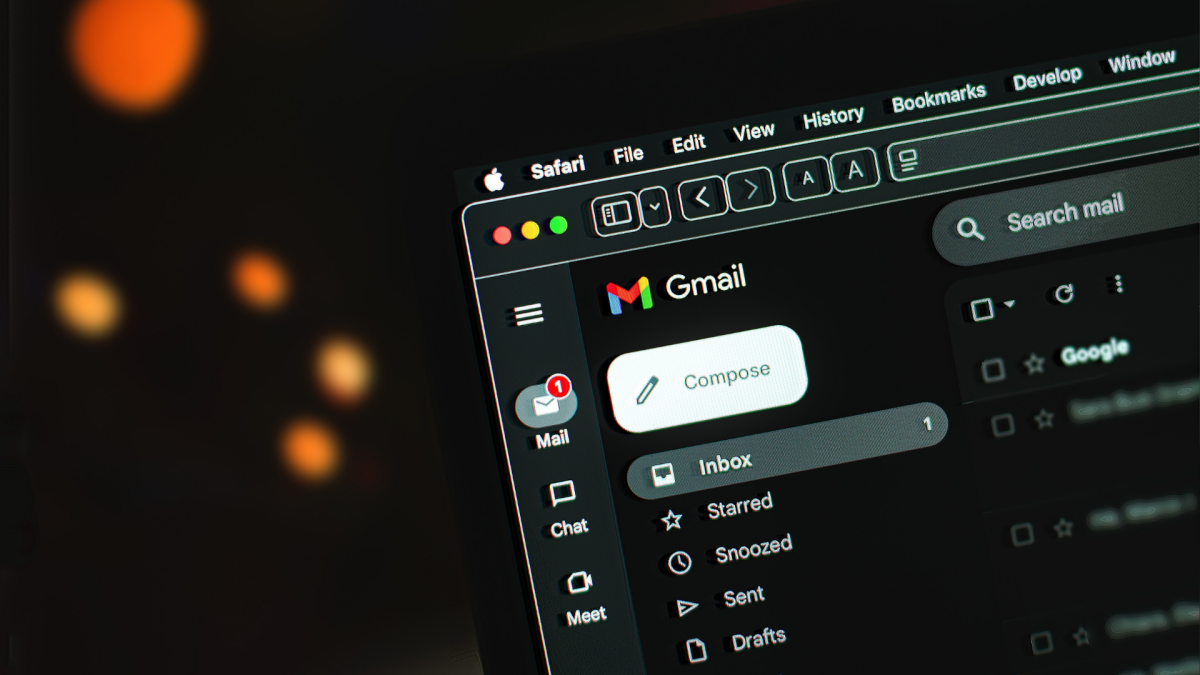
Filtering is one of our favorite Gmail hacks for moving junk emails straight to the trash. Select the messages in your inbox from as many senders as you want to filter out, click the three-dot menu at the top of the screen, and select Filter messages like these. On the pop-up, click Create filter and check Delete it. Be sure to also check Also apply filter to [X] matching conversations. Future emails from filtered senders will automatically go to Trash.
If you’re still getting emails from a sender you’ve filtered out, it may be because they’re using multiple aliases on the same domain. To solve this, you can set up a filter for an entire domain. Go to Settings > See all settings > Filters and Blocked Addresses and select Create a new filter. Add the domain (@[domain].com) to the “From” field, select Create filter, and check Delete it.
If you find yourself deleting emails from the same senders over and over, report them as spam instead. This helps Gmail to recognize these and similar messages as junk, which over time can reduce how much clutter actually reaches your inbox. Select the email and click the Report spam button at the top of your inbox to move the message to your spam folder. Gmail automatically deletes spam after 30 days.
Marketing emails typically have tracking pixels—invisible 1×1 images used to monitor online activity—embedded that let senders know when you open a message, which is why you should stop opening emails you don’t want and use one of the above strategies to filter, delete, or block them instead. To add an extra layer of protection, you can keep external images from loading in emails unless you explicitly allow them. Go to Settings > See all settings. On the General tab, scroll to Images and select Ask before displaying external images.
An obvious way to keep junk from reaching your inbox is to avoid giving out your email address in the first place. You can create a second Gmail account to use solely for subscriptions, shopping, service sign-ups, etc. so any lists you are added to are directed straight to a separate inbox. Gmail also has unlimited aliases via “plus addressing,” so you can easily see where spam is coming from. Or you can create burner accounts via “hide my email” services in browsers, password managers, or Apple iCloud.